


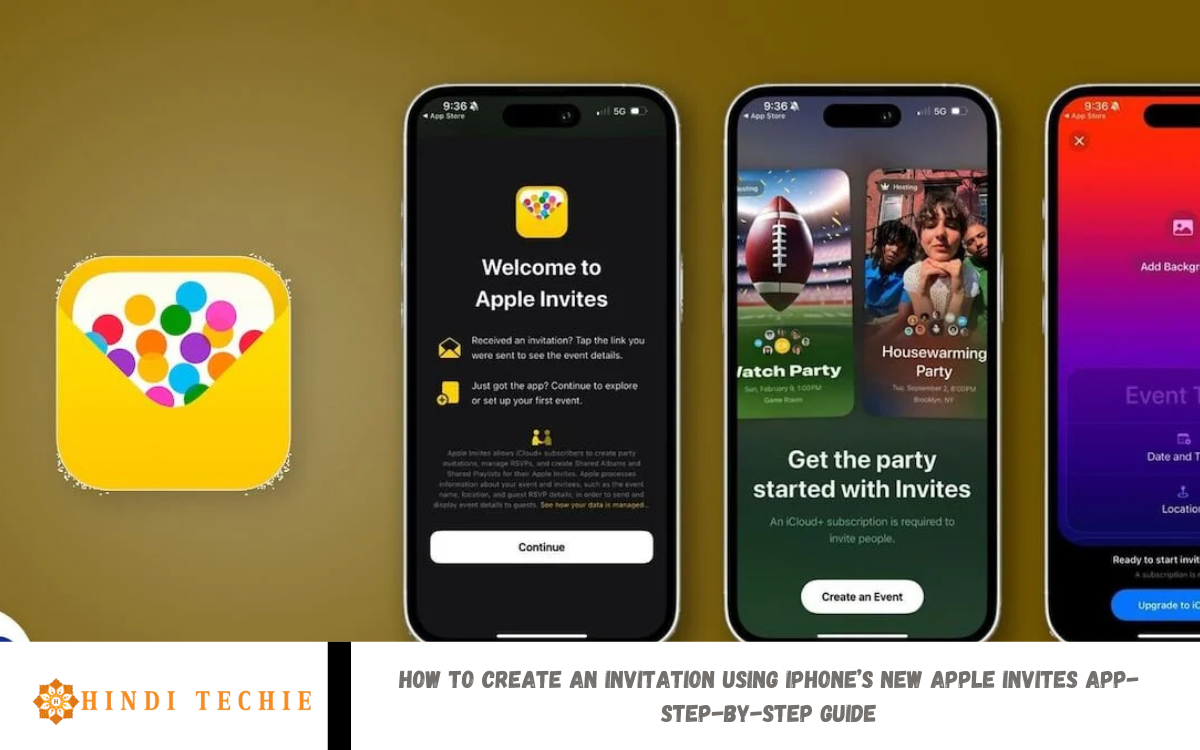
Looking to add a little magic and flair to your next gathering? iPhone’s new Apple Invites app makes crafting beautiful digital invitations a breeze—no design skills required! Whether you’re planning a laid-back brunch, a milestone birthday party, or an elegant dinner soirée, Apple Invites offers intuitive tools and personalization options that help your invite stand out.
From the moment you open the app, you have a variety of sleek invitation templates to choose from, spanning modern minimalist layouts to vibrant, fun designs. Tap into your creativity by customizing everything—from fonts and colors to background images and stickers. You can even include a heartfelt GIF or a favorite photo to set the tone before your guests arrive.
Worried about managing RSVPs? Apple Invites has you covered. Each invitation includes real-time RSVP tracking, allowing you to see who’s coming and what they’re bringing (including dish preferences, allergies, and song requests). You’ll receive handy reminders about opening rates and responses—no more juggling group chats or digging through text threads.
What’s New?
Apple has made event planning easier than ever with the introduction of its brand-new Apple Invites app. Designed specifically for iPhone users, this app combines simplicity with style, enabling you to create personalized, eye-catching invitations directly from your phone—no additional tools or design experience required.
What’s new? Unlike standard calendar invites or third-party apps, Apple Invites offers beautifully designed templates, innovative customization tools, and seamless sharing options all in one place. Whether you’re hosting a birthday party, baby shower, or business event, you can choose from a variety of professionally crafted layouts that match your vibe. Additionally, the app allows you to personalize every detail—from event names and dates to background images, colors, and fonts.
One of the most exciting features is real-time RSVP tracking. Once you send out your invitations via iMessage, email, or social media, you’ll get instant updates on who’s attending, along with any notes or preferences your guests include. It’s a more innovative and polished way to manage invitations and keep everything organized.
Getting Started: Downloading and Opening Apple Invites
Getting started with Apple Invites is quick and easy. First, make sure your iPhone is running the latest version of iOS, as the Apple Invites app may only be available on updated devices. Once your phone is up to date, simply open the App Store from your home screen.
In the search bar at the top, type “Apple Invites” and look for the official Apple app. Tap ‘Download‘ or ‘Get‘ to install the app. The process only takes a few seconds, depending on your internet speed.
Once installed, find the Apple Invites icon on your home screen or in your App Library. Tap to open it. The app presents a clean, easy-to-navigate interface and provides a quick walkthrough of its features. From there, you’re ready to design your first invitation.
Choosing the Right Template for Your Event
One of the best features of using the Apple Invites app is the wide variety of beautifully designed templates available at your fingertips. Whether you’re planning a cozy dinner, a birthday party, a wedding, or a business event, there’s a template that perfectly suits your occasion.
When you open the app and start a new invitation, you’ll be presented with several categories to choose from—like Casual Gatherings, Formal Events, Holidays, Birthdays, and more. Each category features multiple layouts with distinct styles, ranging from minimalist and modern to vibrant and playful.
Take a moment to browse the options and think about the tone of your event. For example, a clean, elegant design might be perfect for a corporate mixer, while something bright and festive works well for a child’s birthday party.
Personalizing Your Invitation Design
Once you’ve chosen the perfect template, it’s time to make your invitation feel like you. The Apple Invites app offers simple yet powerful tools that let you customize every part of your invitation—from text to colors to images.
Start by tapping on the text fields to edit event details, such as the name, date, time, and location. You can choose from a variety of font styles and sizes, helping you set the right tone—elegant, playful, modern, or bold.
Next, explore color options to match your theme. Hosting a garden brunch? Try soft pastels. Planning a glamorous evening party? Go with rich tones or metallic accents. With just a few taps, you can transform the look and feel of your invite.
Read Also: How to Prevent Unwanted Phone Location Tracking
Adding Event Details: Time, Date, Location & Notes
Now that your invitation design looks excellent, it’s time to fill in the most important part—your event details. Apple Invites makes this step intuitive and straightforward so your guests have all the information they need at a glance.
When you tap on the text fields in your chosen template, you’ll be prompted to enter key details such as:
- Event Name – Give your gathering a title that stands out (e.g., “Ayesha’s Birthday Bash” or “Annual Family BBQ”).
- Date & Time – Use the built-in calendar and clock tools to select the exact day and start time. You can also add an end time if needed.
- Location – Enter the address or venue name. Apple Invites can even link the area to Maps for easy directions.
- Notes Section – Use this area to add any additional information, such as dress code, what to bring, parking tips, or a brief personal message.
These small details make a big difference in making sure your guests feel informed and prepared. It’s all about making their experience smooth and enjoyable right from the invite!
Frequently Asked Questions
How do I send the invitations to people?
You can share your invite via iMessage, email, or social media—all directly from within the app.
Can I track RSVPs from guests?
Yes! The app provides real-time RSVP tracking, allowing you to see who’s confirmed and who hasn’t responded yet.
Can I edit my invitation after sending it?
Yes, you can make updates and send a revised version to your guests if details change.
Do recipients need the app to view or RSVP?
No, guests don’t need the app. They’ll receive a simple link or message that lets them view and respond to the invitation easily.
Is there a limit to the number of people I can invite?
There’s no fixed limit. You can invite as many people as you like, depending on how you choose to share the invite (message, email, etc.).
Conclusion
Creating and sending beautiful, personalized invitations has never been easier, thanks to the new Apple Invites app. Whether you’re organizing a small get-together or a large celebration, the app offers everything you need—from elegant templates and easy customization to real-time RSVP tracking—all in one place. With just a few taps on your iPhone, you can design invitations that reflect your unique style and share them instantly via text, email, or social media. It’s simple, efficient, and adds a professional touch to any event.