


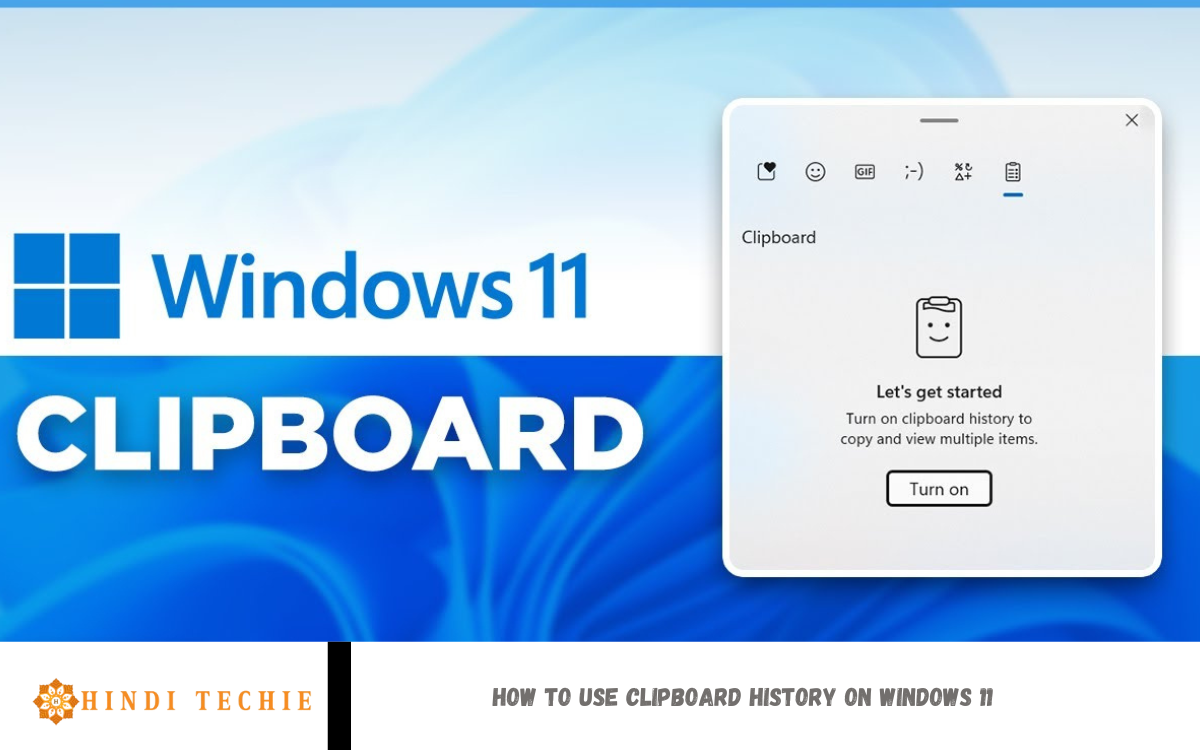
Clipboard history is one of the most useful yet often overlooked features in Windows 11. Whether you’re a student, professional, or casual user, this tool can save you time and effort when copying and pasting text, links, or images. Instead of just keeping the last item you copied, Windows 11’s clipboard history allows you to access multiple copied items in one place. This means you can easily retrieve something you copied earlier, even after copying something new.
Using clipboard history can significantly enhance your productivity, particularly when working on documents, emails, or coding projects. Imagine writing an email where you need to paste several links or quotes you gathered from different sources. With clipboard history, you can go back and reuse each item without switching between windows or recopying the duplicate content.
In Windows 11, enabling and using the clipboard history is a quick and straightforward process. Once turned on, you can view your history at any time by pressing the Windows key + V. The interface is clean, user-friendly, and even lets you pin frequently used items for future access.
What Is Clipboard History in Windows 11?
Clipboard history is a built-in feature in Windows 11 that enables you to save and access multiple items you’ve copied, including text, images, and links. Usually, when you copy something (using Ctrl+C), it replaces whatever was previously copied. But with clipboard history turned on, Windows keeps track of everything you’ve copied recently, so you can go back and reuse any of those items without having to copy them again.
You can view your clipboard history by pressing the Windows key + V. A small pop-up window will appear, displaying a list of your most recently copied items. You can scroll through them, click to paste, or even pin the ones you use often so they won’t be deleted.
Clipboard history stores up to 25 items and clears them when you restart your PC—unless the items are pinned. This makes it a powerful and time-saving tool, especially when you’re working on large documents, coding, or multitasking between apps.
Why Should You Use Clipboard History?
Instead of copying and pasting one item at a time, clipboard history allows you to store up to 25 copied items and access them at any time with just a press of the Windows key + V. This saves time, reduces repetitive work, and makes multitasking much smoother.
Imagine you’re working on a document, switching between a browser, email, and notes. Without clipboard history, you’d constantly copy and paste back and forth. But with it, you can copy everything you need once and paste each item as required, all from the history menu.
Clipboard history is invaluable for students writing essays, professionals working with reports, or anyone who often reuses text, links, or images. You can also pin frequently used items so they stay available, even after restarting your computer.
Read Also: How to Use Voice Access in Windows 11
How to Enable Clipboard History on Windows 11
Turning on Clipboard History in Windows 11 is quick and easy. Once enabled, you’ll be able to access everything you’ve copied recently with just a few clicks. Follow these simple steps:
Step 1: Open Settings
- Click on the Start menu or press the Windows key on your keyboard.
- Select Settings (gear icon), or press Windows + I to open it directly.
Step 2: Go to System Settings
- In the Settings window, click on System from the left-hand menu.
Step 3: Select Clipboard
- Scroll down and click on Clipboard in the list of system options.
Step 4: Turn On Clipboard History
- In the Clipboard settings, find the Clipboard history section.
- Toggle the switch to On.
That’s it! Clipboard History is now enabled on your Windows 11 PC.
Tip:
You can now open your clipboard history anytime by pressing Windows key + V. If it’s your first time using it, you’ll see a prompt to turn it on—just click Turn on, and you’re good to go.
How to Use Items from Your Clipboard History
Once Clipboard History is enabled on your Windows 11 PC, using it is quick and straightforward. Here’s how you can view, select, and paste any item from your clipboard history:
Step 1: Open Clipboard History
- Press Windows key + V on your keyboard.
- A small pop-up window will appear showing your recently copied items, including text, images, and links.
Step 2: Browse Your Clipboard Items
- Scroll through the list to view the items you’ve copied.
- Each item will display a preview, allowing you to easily find what you need.
Step 3: Paste from Clipboard History
- Click on the item you want to use.
- It will be instantly pasted into your current document, email, or any other text field.
Step 4: Pin Important Items (Optional)
- If there’s an item you use often (such as an email address or template), click the three dots next to it and select “Pin.”
- Pinned items stay in your clipboard history, even after restarting your PC.
That’s it!
This feature helps you work faster by letting you reuse text or media without needing to recopy it. It’s ideal for multitasking, repetitive tasks, or keeping applicable content handy.
Frequently Asked Questions
Will my clipboard history be saved after a restart?
No. All items are deleted after a restart—except pinned items, which remain until you unpin them.
Can I pin clipboard items for future use?
Yes. Click the three dots next to an item and select “Pin” to save it.
Can I delete clipboard history?
Yes. Open the clipboard history (Windows + V), click the three dots, and select either “Delete” or “Clear All”.
Is clipboard history safe and private?
Yes, clipboard data is stored locally and not synced unless you enable cloud sync across devices.
Can I also copy images and files?
You can copy small images, but files are not stored in the clipboard history—only text and pictures.
Can I use clipboard history across devices?
Yes, if you sign in with a Microsoft account and enable Clipboard sync, you can access clipboard content across Windows 10 and Windows 11 devices.
Conclusion
Clipboard history in Windows 11 is a simple yet powerful feature that can significantly boost your productivity. By allowing you to store and access multiple copied items, it saves you time and reduces the hassle of switching between apps or recopying content. Whether you’re working on documents, emails, research, or coding, this feature helps streamline your workflow and keeps your most frequently used content just a keystroke away. From enabling the feature to pinning essential items and clearing old ones, Windows 11 makes clipboard management easy and user-friendly.