


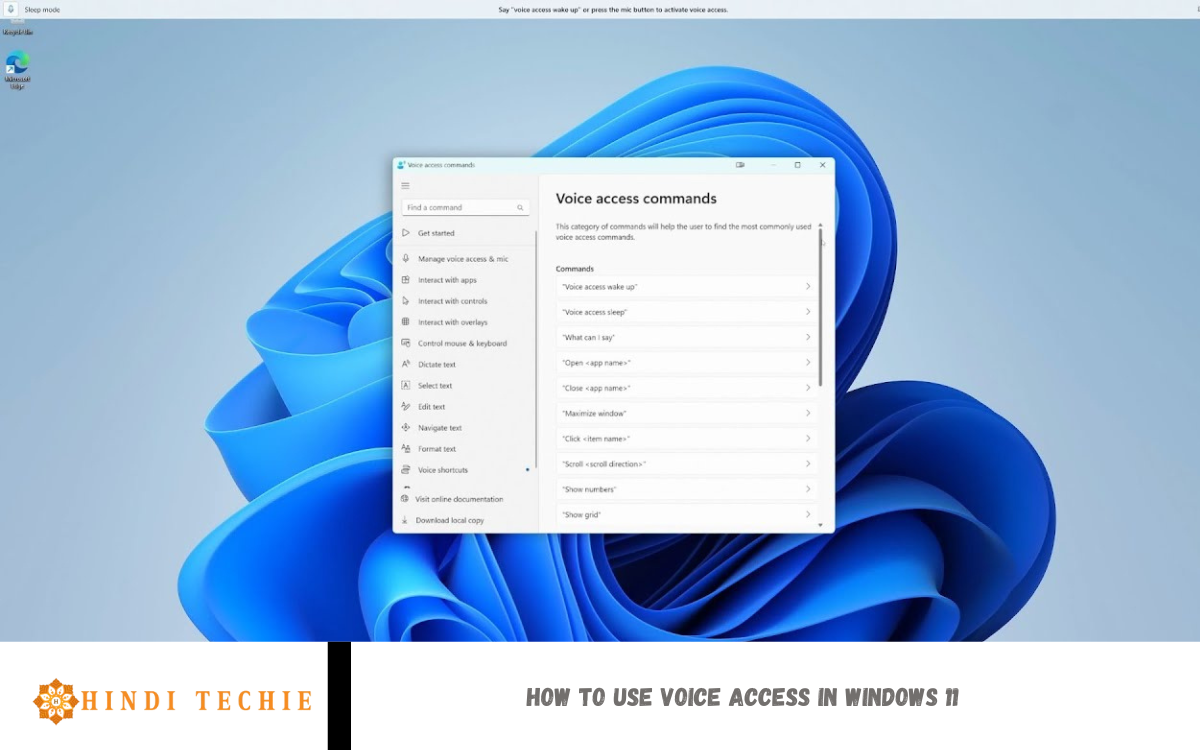
Windows 11 introduces a powerful new feature called Voice Access, designed to make your computer more accessible and hands-free. Whether you have mobility challenges or simply want a more efficient way to interact with your PC, Voice Access lets you control your entire system using just your voice. From opening apps and browsing the web to writing emails and navigating settings, Voice Access helps you do it all—without touching the keyboard or mouse.
Technology to understand your spoken commands in real-time. Once activated, it listens for specific phrases and responds instantly, making your experience smoother and more interactive. You can say things like “Open Chrome,” “Click Start,” or “Scroll down,” and Windows 11 will follow your command.
Voice Access is especially useful for multitaskers, individuals with disabilities, and anyone looking to boost productivity. It’s easy to set up, works offline, and supports a wide range of commands. In this guide, you’ll learn how to turn on Voice Access, customize its settings, and start using your voice to take complete control of your Windows 11 PC. Let’s dive in and unlock the power of hands-free computing!
What Is Voice Access in Windows 11?
Voice Access is a built-in accessibility feature in Windows 11 that allows you to control your PC using just your voice. It’s designed to help people navigate their computer hands-free, whether for convenience, productivity, or accessibility needs. With Voice Access, you can open apps, click buttons, scroll through pages, dictate text, and much more, all through simple voice commands.
Unlike earlier voice control tools, Voice Access in Windows 11 is smarter, faster, and works even when you’re offline. It utilizes advanced on-device speech recognition, ensuring that your voice data remains private and secure. The feature understands a wide range of natural commands, such as “Open Start menu,” “Click File,” or “Scroll down,” and responds quickly to help you navigate tasks without needing a keyboard or mouse.
Whether you have limited mobility or are simply looking for a more efficient way to use your PC, Voice Access offers a powerful and intuitive experience. It’s easy to set up and use, making Windows 11 more inclusive and convenient for everyone.
Benefits of Using Voice Access
Voice Access in Windows 11 is a game-changing feature that brings convenience, Accessibility, and efficiency to your everyday computing experience. Whether you’re someone with limited mobility or just looking for a hands-free way to use your PC, here are some of the top benefits of using Voice Access:
Hands-Free Navigation
You can control your entire PC using voice commands—no need for a keyboard or mouse. This makes computing more accessible and convenient, especially for people with physical disabilities.
Faster Task Execution
Voice Access helps speed up your workflow. Opening apps, switching windows, scrolling, or typing—all can be done simply by speaking.
Accurate Speech Recognition
Windows 11 uses advanced on-device speech recognition that works smoothly and understands natural commands, even when you’re offline.
Increased Productivity
By reducing the need for manual input, Voice Access lets you multitask more efficiently and focus on what matters most.
Accessibility for Everyone
Designed with inclusivity in mind, Voice Access empowers users with mobility challenges to use their computer independently and confidently.
Private and Secure
Since Voice Access processes your commands locally on your device, it keeps your data private and secure.
Easy to Learn and Use
Windows provides on-screen hints and guides to help new users get started quickly, making it a beginner-friendly experience.
Voice Access turns your voice into a powerful tool, bringing control, freedom, and comfort to your Windows 11 experience.
System Requirements for Voice Access
Before using Voice Access in Windows 11, ensure your system meets the basic requirements. Microsoft has designed this feature to work on most modern devices, but there are a few key conditions to check:
Operating System
- Windows 11 Version 22H2 or later
- Voice Access is only available in Windows 11 and requires the 22H2 update or later. Ensure your system is updated to this version or a newer one.
Supported Language
- Currently, Voice Access supports only English (U.S.).
- You’ll need to set your device’s display language to English (United States) for the feature to work correctly.
Microphone
- A working microphone is essential.
- The better the mic, the more accurate the voice recognition.
Hardware Requirements
- A modern processor (Intel, AMD, or ARM-based) that supports Windows 11
- At least 4 GB of RAM and 64 GB of storage (as per Windows 11’s base requirements)
- A device that meets Trusted Platform Module (TPM) 2.0 and Secure Boot requirements
Speech Recognition Settings
- You must download the speech recognition model when setting up Voice Access (it downloads automatically when first used).
- An internet connection is required only for the initial download—after that, Voice Access works offline.
Once your system meets these requirements, you’re ready to enjoy hands-free control with Voice Access in Windows 11.
Read Also: Become a Windows 11 Expert – 30 of Our Favorite Tips and Tricks You Need to Know
How to Turn On Voice Access in Windows 11
Enabling Voice Access in Windows 11 is straightforward and requires only a few steps. Follow this easy guide to activate it and start controlling your PC with your voice:
Step 1: Open Settings
- Press Windows + I on your keyboard to open the Settings app.
Step 2: Go to Accessibility
- In the Settings menu, click on Accessibility in the left-hand sidebar.
Step 3: Select Speech
- Scroll down and click on Speech under the “Interaction” section.
Step 4: Enable Voice Access
- Turn on the Voice Access toggle switch.
- If this is your first time, Windows will prompt you to download a speech model—just follow the on-screen instructions.
Step 5: Set Voice Access to Launch Automatically (Optional)
- You can choose to start Voice Access automatically every time you sign in by checking the option right below the toggle.
Step 6: Start Speaking
- A Voice Access bar will appear at the top of your screen.
- When it says “Voice access is listening,” you’re ready to give commands, such as “Open Start menu” or “Scroll down.”
Voice Access is now enabled! You can interact with your PC using natural voice commands for a hands-free and accessible experience.
Frequently Asked Questions
Can I use Voice Access for typing or dictating text?
Yes! You can dictate emails, documents, and messages using your voice in most apps.
Can I control the mouse and click buttons using Voice Access?
Absolutely. You can say things like “Click Start” or “Move cursor to top right” to control the mouse and interface.
How do I pause or turn off Voice Access?
Say “Stop listening” or click the microphone icon in the Voice Access toolbar to pause or turn off the feature.
Is Voice Access safe to use?
Yes. Voice Access utilizes on-device processing, ensuring your voice commands remain private and secure.
Can I use Voice Access on a touchscreen device?
Yes. Voice Access works with both touch and non-touch devices, giving you more flexibility in how you use your PC.
Conclusion
Powerful and user-friendly feature designed to make computing more accessible, efficient, and hands-free. Whether you’re navigating your PC, opening apps, typing documents, or browsing the web, Voice Access allows you to do it all using simple voice commands. It’s beneficial for individuals with mobility challenges, but also great for anyone looking to boost productivity or reduce reliance on a keyboard and mouse.