


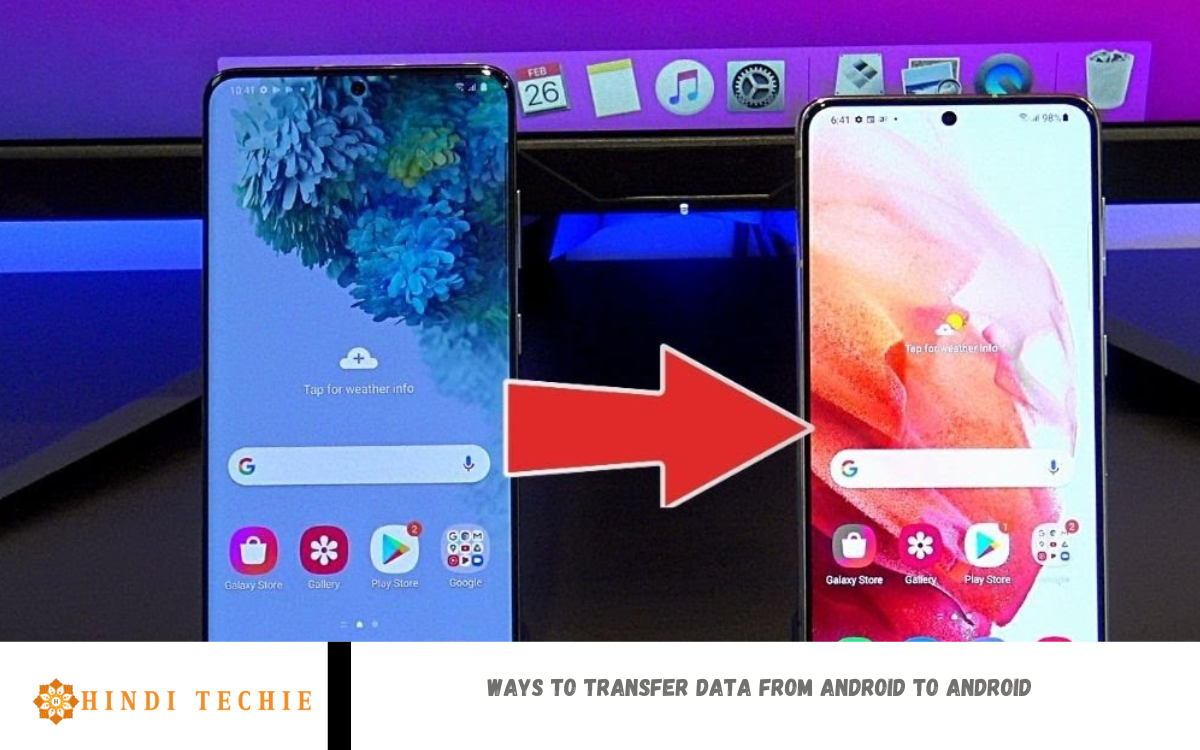
Switching to a new Android phone is exciting, but moving your data can feel overwhelming. Thankfully, there are several easy and secure ways to transfer everything from your old Android device to the new one. Whether it’s contacts, messages, photos, apps, or even Wi-Fi settings, Android offers a variety of tools and methods to make the transition smooth and stress-free.
From using built-in features like Google Account sync and Nearby Share to third-party apps and direct cable connections, you can choose the method that best suits you. If you’re setting up a brand-new phone, Android’s setup process will even guide you through a quick transfer. For more control or to back up specific files, you can also use tools like Samsung Smart Switch or Google Drive backup.
Pros and cons depending on your needs—some are faster, others are more detailed. The best part? Most of them don’t require any technical knowledge. In this guide, we’ll walk you through the most effective and user-friendly methods for transferring data between Android devices so you can get started on your new phone without losing any vital information.
Using Google Account to Sync and Transfer Data
One of the easiest and most reliable ways to move your data from one Android device to another is by using your Google Account. Since most Android phones are already connected to a Google account, your data is likely being backed up automatically in the background.
To start, make sure your old phone is backed up. Go to Settings > Google > Backup and check if options like Contacts, Calendar, Photos, Apps, and Device settings are synced. Tap Back up now if needed.
Account during the initial setup process. You’ll be asked if you want to restore data from your previous device—simply confirm and choose what you want to bring over.
Transfer with Android’s Built-In Setup Feature
When you turn on your new Android phone for the first time, it offers a built-in setup process to help you quickly and easily transfer data from your old device. This feature is designed for convenience and works seamlessly across most Android phones.
During the setup, you’ll be asked if you want to copy apps and data from your old device. Choose “Yes” and select the option to transfer from an Android device. Then, follow the on-screen instructions.
You can connect the two phones using a USB cable for a faster, more complete transfer. If you don’t have a cable, you can also use a wireless connection (like Wi-Fi or Nearby Share) to move your data.
Using a USB Cable for Direct Transfer
If you prefer a fast and stable way to transfer data from one Android phone to another, using a USB cable is a great option. Such as photos, videos, and apps, quickly—without needing Wi-Fi or cloud storage.
During the setup of your new Android phone, you’ll be prompted to choose how you want to transfer data. Select the “Cable” or “Cable transfer” option. Then, connect both phones using a compatible USB cable and, if needed, a USB OTG (On-The-Go) adapter.
Once connected, follow the instructions on both devices. Your old phone will ask what data you want to send—apps, contacts, messages, photos, and more. Select what you need, and the transfer will begin.
Read Also: The Apple TV app is now available on Android
Samsung Smart Switch (For Samsung Devices)
If you’re switching to a Samsung phone, Samsung Smart Switch is one of the easiest and most effective tools for transferring data. It’s designed specifically for Samsung users and supports transfers between Android and iPhone devices.
You can use Smart Switch in three ways: wirelessly, with a USB cable, or through a PC. Most people find the wireless or cable method the quickest.
To get started, install the Smart Switch app on both devices (most Samsung phones already have it pre-installed). Open the app on both phones and follow the on-screen instructions. Then, select what you want to transfer, including contacts, photos, messages, apps, settings, and more.
Frequently Asked Questions
Can I use Bluetooth to transfer all my files?
Bluetooth is best suited for sharing a few files, such as images or documents. It’s slow and not ideal for complete phone transfers.
Do I need a computer to transfer data?
No. Most modern Android phones support direct phone-to-phone transfers via cable or wireless. Computers are optional.
Is the Samsung Smart Switch only for Samsung phones?
Yes, Smart Switch is designed for transferring data to a Samsung phone. You can still use it to move data from other Android brands or iPhones into a Samsung.
Can I transfer my apps and their data as well?
Yes, many methods, such as Google Backup and Samsung Smart Switch, allow you to reinstall apps and restore app data (although not all apps support complete data restoration).
How long does the data transfer take?
It depends on the method and amount of data. It can take anywhere from a few minutes to over an hour for large files or full backups to complete.
What should I do if the transfer gets stuck or fails to complete?
Try restarting both devices, check the connection, or use a different method (such as switching from wireless to cable). Also, ensure both phones are fully charged.
Conclusion
Transferring data from one Android device to another has never been easier. With various options, including Google Backup, Nearby Share, USB cable transfer, and tools like Samsung Smart Switch, you can quickly and securely transfer all necessary content—contacts, photos, apps, and settings. Whether you prefer wireless methods or a direct cable connection, there is a solution that suits your needs and comfort level. The key is to choose the method that works best for your devices and the type of data you want to transfer. Always ensure your old phone is backed up and both devices are fully charged before starting.